Monday, July 04, 2011

Basic Computer Tools

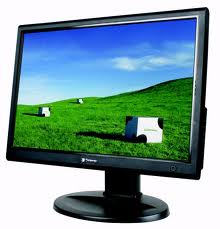
    Monitor, the output is temporary, because only looked for a while just on the screen. Its function is to see the results of input or programs running.
 
CPU (central processing unit)


 Central processing unit (CPU) is part of a computer system that perform the instructions of a computer program, and is the main element performs the function of a computer or other processing device. Central processing units execute each instruction in program order, to perform arithmetic operations, logic, and input / output from the system basis. This term has been used in the computer industry at least since the early 1960s. [1] The form, design and implementation of CPUs have changed dramatically since the early examples, but their basic operation remains the same.

    Initial CPU designed specifically as part of a larger, sometimes one-of-a-kind computer. However, this method is expensive designing custom CPUs for a particular application generally has provided a way for the development of mass production of processors made for one or many purposes. The trend began in the era of standardization generally discrete transistor mainframes and minicomputers and has rapidly accelerated with the popularization of the integrated circuit (IC). IC has allowed increasingly complex CPUs to be designed and manufactured to tolerances on the order of nanometers. Both the miniaturization and standardization of CPUs have increased the presence of digital devices in modern life far beyond the limited application of specialized computing machines. Modern microprocessors appear in everything from cars to mobile phones and toys.


Keyboard


   The keyboard is the most Important input unit in a data processing by computer. The keyboard works include letters, numbers, special characters as well as a medium for the user (users) to perform other commands are needed, Such as saving files and opening files. The creation of a computer keyboard typewriters from the model created and Patented by Christopher Latham in 1868, and in 1887 the company manufactured and marketed by Remington. The keyboard is used now this is kind of QWERTY, in 1973, was unveiled as a standard keyboard keyboard ISO (International Standards Organization). Number of keys on the keyboard consists of 104 keys. The keyboard Now That We Know has some kind of port, ie serial port, ps2, usb and wireless


Mouse


    Mouse is one unit of input (input device). The function of this tool is to move a pointer or cursor quickly. In addition, orders can be as practical and faster than with a keyboard. Mouse began to be used optimally since the operating system has been based GUI (Graphical User Interface). electrical signals as a mouse input device is generated by a small ball inside the mouse, according to the shifting or movement. Most of the mouse consists of three buttons, two buttons which are generally only used the left button and right button. Currently the mouse is also equipped with rollers button (scroll), where is this button located in the middle. The term suppression is called by clicking the left button (Click) where the emphasis is going to function when the mouse is on a designated object, but when not on a designated object of this emphasis will be ignored. In addition there are also other terms that are called by sliding the (drag) that is pressing the left mouse button without releasing it with while being moved. This drag will cause the object to be moved or copied to other objects and other possibilities. The emphasis of the left mouse button twice quickly and regularly called double click (double click) while pressing the right mouse button once called by right-clicking (right click) Mouse consists of multiple ports is a serial mouse, mouse ps / 2, usb and wireless 


Speaker


     Loudspeakers (English: loud speaker or speakers) is a transducer that converts electrical signals into audio frequency (sound) by means of components that form the membrane vibrates.
 
    In every system of sound, best sound quality depends on the determination of the speakers. The best recording, encoded into a high-quality storage devices, and played with a deck and upper-class speakers, still the result will sound ugly when associated with low quality speakers. On the speaker system is an electronic component that carries signals, store them in CDs, tapes, and DVDs, then returned again in the form of actual sounds that we can hear. In this article, I will explain how a speaker to do the process. They also discussed why the speakers are designed differently and how these differences lead to different effects on quality.  
    
    Speaker is an amazing technology that delivers a huge impact on our culture. But besides all that, the actual speaker is simply a tool that is very simple.


Printer


Printer Technology
    From time to time, printer technology continues to evolve so inevitably for someone who is always associated with computers and other equipment must keep abreast of these developments. The printer is in Indonesian language means the printer (print device). The term 'printer' is now often used to refer to a print device connected to the computer. To connect the printer to the computer needed a cable that connects from the printer to the computer CPU. Currently, the brand products are frequently used printers include Epson, Hewlett Packard (HP), Canon, Lexmark and many more. To know more clearly about the function, type of printer and the workings of the printer, please read the continuation of this article.
Function printer
   The printer is one of the hardware (hardware) connected to a computer and has the function to print text, images and more views from computer to paper or similar media. The term is known at a resolution of the printer is called dpi (dots per inch). The point is the large number of points in the area of
​​1 inch. The higher the resolution the better the resulting mold. Conversely, if the resolution is low then the printout would be bad / not good.

Introduction of Basic Computer

   Of course you already know what it is called a computer, the computer is an electronic device that consists of many different components all of which are mutually supportive working computer system.

    Today's computers is absolutely essential to be known by everyone because it is closely related to the development of computer technology in the world, as we have seen that a variety of electronic equipment are now no longer use the analog system as before but now a lot of electronic equipment are already switching to digital systems that has a function and filtur more sophisticated, with the technological developments that are so rapidly it is an obligation for us to always be dynamic in addressing these developments.

    The computer has many benefits that aim to assist people in completing the job quickly and more easily even all the work we do should be done by computer as a robot who was programmed to perform a specific job or job-there is also a robot that is controlled by remote control
.

    Once you know what a computer, then it is time you should also know the components that exist on the computer. The components on the computer there are 2 internal & external components. There are 4 external components that must exist in order to operate a computer,
The first is certainly there must be a CPU because of all the control center located on the CPU, the second is due to monitor Monitor function to display all the processes performed by the CPU so that we can see the data that exist on the computer, the third is a mouse, called the mouse because it is similar to a rat ... function is to move the mouse cursor on the monitor so that we operate a computer, and the fourth is the keyboard because of all the text entered and orders can be done by pressing the button on the keyboard.

    Other external components which are supporting is a function printer for printing text or images from computer to paper, CD / DVD-Rom / RW which serves to read or write Disc CD / DVD, modem consists of GPRS modem, ADSL, or various other types of modems that function to get connected to the internet, speakers whose function is to listen to sound on the computer, and many more external components we can add ...
   
    For an explanation of the internal components on the computer I wrote on my post to come, always visit this blog so you can get interesting information from my ...

Basis on the Internet

    When you start to learn about computers, there are a lot of new words to understand. Here is a glossary of some computer words we have learned.
 
    Emoticons are little faces that show expressions. They also tell people what mood someone is in. :-) would mean I am in a good mood. People use them when typing e-mail messages to each other or when they are in a chat room.
 
     E-mail stands for electronic mail. It is a fast and inexpensive way to send a message to someone. Instead of having to write a letter and put it in a mailbox, you type your letter in an e-mail program and send it electronically to your destination.
 
    CD A CD is a way to store information. Your favorite computer game might be on a CD. When you put the CD in, there are little groves that the computer can read. Then you can save your game on the CD. The next time you put that CD in you can play where you left off.
 
    Viruses A virus is when the computer catches something that infects the files. In just a few days it can go through almost all of the files on your computer.
 
    Game Machine Some people have a game machine. Some game machines are Nintendo, Sega, Play Station, and Jaguar. A game machine's a computer - believe it or not. The t.v. is like the computer screen or monitor. The cartridge is like the CD or floppy disk. The controllers are like the mouse, keyboard, or joystick
Modem A modem lets you take in signals and lets you send information over the phone line. That is why when you are on the internet nobody can call you and you can't call anybody unless you have two phone lines.
Hard Drive A hard drive is the brains of your computer.
 
    URL URL stands for Uniform Resource Locater. It is the address of a site on the internet.
Cyberspace Cyberspace is the stuff behind the screen and the satellite. Cyberspace is another word for the internet.
 
Hyper Text Hyper text is the blue underlined words that you can click on to go to another page.
Browser A browser is something that lets you point and click on a subject and poof you're there. When you type in the address sometimes it takes longer because you might miss a letter or forget the http://. Now it is a lot easier with a browser. You need a browser to surf. Surfing is like changing the channels on the t.v.
 
    Password Do you know what a hacker is? Oh yeah, I forget you haven't learned yet. A hacker is a bad guy on the internet. You can keep them out if you have the right security. Here are some security tips: use passwords that have more than 3 letters, don't tell anyone your password (except your mom and dad), and choose a password that is easy to remember.
 
    Mouse A mouse is a thing that you move the cursor around with. The curser is the arrow on the screen. The mouse is a substitute for the keyboard. The mouse also has buttons like a keyboard that can do different things.
Server A server is a host computer.
 
Host A host is a computer that other computers have to hook up with.
 
Newbie A newbie is a person on the internet that is new.
 
Gopher A gopher is a program that searches for files.
 
Icons Icons are small pictures. They can be programmed to give your computer commands when you click on them.
 
Packet A packet is a small part of an e-mail letter as it travels through wires.
 
User A person that is on the internet - like you.
 
Satellite A device in space that receives and transmits signals.
 
Satellite dish A antenna on earth that receives signals that bounce back from a satellite.
 
Crack When your password gets broken it's cracked. Mostly hackers crack passwords to get credit card numbers or other information. 

Internet History

    You can compare the internet to a spider and its web. The spider's web starts out small and gets bigger and bigger until you have a web. The strings that make up the web of the internet are phone lines and the spider is you and your computer! Even though the web probably will never be finished, that doesn't mean you can't go exploring or have any fun. The internet was made so you could learn, explore and have fun. Although a spider only has eight eyes, the internet has millions of eyes to keep track of things such as the Olympics, the stock market, and hockey. The internet keeps getting bigger and bigger all the time with more than 2 million people joining every month. All of this growth continues to make the internet a REALLY BIG thing.
History of the Internet

    The first internet was ARPANET, it was made up of 37 computers. These computers were so large that they took up whole rooms. The reason for ARPANET was that if we went into nuclear war, and one of the lines became damaged the signals could go down another path.

    After some time they made a second internet called MILNET. The reason for MILNET was that colleges and universities had taken over ARPNET to exchange and access data between schools; MILNET on the other hand was designed for military use only.

    Finally they created a third internet which was called NSFNET. This portion of the internet was developed by the National Science Foundation. It had 5 supercomputers where scholars could get access to the latest technology in supercomputers. NSFNET eventually became so popular that it took over the functions of ARPNET.

    By 1994 U.S. government control of the internet had been replaced by commercial internet networks or IP networks. These networks were operated by big corporations such as IBM, Sprint and Alternet. Outside the U.S.A. many other IP networks have formed making the internet world wide.

About Computers

    Computers are used for different things. A few of the things people use computers for are to solve math problems, write and check the spelling of their words, play games, do homework, help fly airplanes, and keep track of information. Computers have changed a lot over the past 150 years.

    An early computer that helped people keep track of numbers and solve math problems is the abacus. Chinese people have used them for thousands of years. Charles Babbage made a device in 1823 that was a calculating machine. It was used to solve math problems. He developed the idea of a machine having a central processing unit, memory for storing numbers, and programs on punch cards that would run the computer.

    As electricity developed, so did computers. The other major invention that helped to develop computers was the microprocessor. Ted Hoff made the first microprocessor in 1970. This was important because a lot of information could be programmed on a small chip. Computers that used to take up a whole room could then be made much smaller. When computers were really big, not many people could afford to have one. The microprocessor helped to make the size needed for a computer much smaller and more affordable.

    Before there were computers, there were other ways to send information over wires. Morse code was made up by a man named Samuel F. B. Morse in 1838. Morse code uses dots and dashes. A dot is when you hold down the telegraph for a short time. A dash is when you hold down the telegraph longer. The most widely used signal is sos. Here is the way you can signal sos in Morse code. To do a "s" you do three dot's. The "o" uses three dashes. People used to have to make the signals by themselves using their hands. Modern computers have transistors that use switches that turn on and off to send signals.

Tuesday, June 28, 2011

Setting Modem Adsl Sanex untuk koneksi Manual Speedy

Cara setting Modem Adsl Sanex Manual ( Dial ) Speedy

Pertama-tama kita isi IP untuk LAN ( Lokal Area Network ) kita lihat gambar dibawah ini

Setelah muncul Gambar diatas kita klik Control Panel lalu akan muncul gambar seperti dibawah ini
 Lalu kita pilih Network connections dan akan muncul seperti gambar dibawah ini


Setelah gambar Diatas kita klik kanan Lokal Area Connections dan pilih Propertis maka akan muncul gambar seperti dibawah ini...


setelah muncul kita pilih Internet Protokol lalu muncul gambar seperti dibawah ini


Maka akan muncol Gambar seperti diatas dan Isikan IP ( Internet Protokol ) dan DNS ( Domain Name System ) Seperti Contoh Diatas...lalu Pilih OK

Setelah Kita mengisi IP pada LAN ( Lokal Area Network ) kita sekarang kita coba untuk Setting Modem ADSL ( Asymmetric Digital Subscriber Line

Buka web browser Internet Explorer ( IE ) Lalu masukan Di address 192.168.1.1 setelah itu tekan Enter dan akan muncul gambar seperti dibawah ini...


Setelat tampil akan muncul Username dan password ...username dan passwordnya sama yaitu (  admin  ) setelah dimasukan akan tampil tampilan seperti dibawah ini...


Setelah muncul gambar diatas lalu kita pilih Wizard dideretan diatas Status seperti gambar dibawah ini...


Maka akan muncul gambar diatas setelah ini kita pilih wizard lagi maka akan muncul gambar seperti dibawah ini...


setelah itu akan muncul gambar seperti diatas ini...dan kita pilih PVCs Group A saja dan pilih next...maka akan muncul gambar seperti dibawah ini ...

   Setelah muncul gambar dibawah ini kita coba untuk merubah VPI dan VCI menurut daerah Kita masing-masing dan kita coba ambil contoh untuk didaerah Sumatera,,,,untuk daerah Sumatera kita menggunakan VPInya 8 dan VCI 81 seperti gambar diatas...lalu kita klik Next ...dan akan muncul lagi tampilan seperti gambar dibawah ini...

Setelah tampil seperti gambar diatas kita pilih untuk koneksi Briged 1483 karena kita menggunakan koneksi Manual atau Dial untuk Speedynya....dan pilih Next lagi...setelah itu makan akan muncul gambar seperti dibawah ini ....

Setelah muncul gambar diatas kita klik aja Next untuk tahap selanjutnya...seperti gambar dibawah ini

    Dan Pilih Finish untuk menyelesaikan ....dan  Modem akan Reboot dalam 2 (dua Menit ) Selesai....!!!!
Ada tahap selanjutnya untuk membuat Koneksi Manual ( Dial ) Speedy di tampilkan pada desktop...Kita alnjutkan di halaman selanjutnya...Ok   ^_^

Sunday, June 19, 2011

( how to Install Window Xp ) Install Os Window Xp

 Belum puaskan setelah bisa merakit komputer ^_^ sekarang kita coba Install Os window Xp untuk tahap kelanjutan setelah Merakit...

   Windows XP adalah suatu sistem pengoperasian (operating system) yang paling banyak dipakai sampai saat ini karena selain kemudahan dalam pemakaiannya Windows XP digunakan sebagai standarisasi pembelajaran yang di pakai oleh sekolahan-sekolahan dan perguruan tinggi pada umumnya.

    Untuk melakukan penginstalan windows xp diperlukan ketelitian dan kesabaran dalam prosesnya karena memerlukan waktu yang lumayan lama.

    Ada beberapa jenis windows xp diantaranya windows xp professional, Home Edition, Media Center Edition, Tablet PC Edition, Starter Edition, Professional x64 Edition, Professional 64-bit Edition For Itanium.

berikut langkah-langkah yang mudah dan lengkap cara menginstal windows xp :

1. Siapkan CD WINDOWS XP

2. Siapkan CD DRIVER MOTHERBOARD

3. Atur bios terlebih dahulu agar prioritas bootingnya dimulai dari CD(DVD)-ROM, caranya:

a. Masuk ke BIOS dengan menekan tombol Del, atau F1, atau juga F2.
Pilih menu Advanced Settings, kemudian carilah ‘Boot Priority’ atau yang sejenis.

b. ubah pengaturanya, agar CDROM jadi urutan yang pertama kemungkinan pilihan ini ada 2 jenis

* menu ‘First boot priority’, ‘Second boot priority’ dll: Aturlah ‘First boot priority’ ke ‘CDROM’ dengan menekan tombol PgDn/Pgup (Page Down/Up) atau +/-.
Atur juga ‘Second boot priority’nya ke HDD0/HDD1.
* Jika menunya ‘Boot priority’: atur ke ‘CDROM, C, A’ atau ‘CDROM, A,

C. dengan menekan tombol PgDn/Up.

Cara paling mudah instal windows xp
(lengkap dengan gambar):


    Gak usah di utak-atik biosnya. biarin aja bios diload masukin CD WINDOWSnya, lalu Restart komputer, trus tekan-tekan F8 atau F10 atau F11 (boleh dicoba satu-satu) nanti bakal muncul opsi boot selection. pilih aja yg ada 'bau' cd-nya. trus enter. selesai deh...ga pake repot-repot...

4. Tunggu beberapa saat sampai muncul tulisan "press any key to boot from CD" seperti tampilan Seperti gambar di bawah ini


5. Tekan ENTER atau sembarang tombol, lalu proses instalasi akan mengecek hardware komputer anda, kemudian akan muncul tulisan "windows setup" seperti gambar dibawah ini

6. lalu file-file di dalam cd akan di load ke dalam komputer, kemudian akan muncul tampilan "welcome to setup" seperti gambar dibawah ini
7. Tekan "ENTER" untuk menginstal windows xp, "R" untuk repair system windows yang sebelumnya pernah terinstal, "F3" untuk keluar dari proses instalasi, lalu akan muncul (End User Licese Aggrement) seperti gambar di bawah ini
8. Tekan "F8" kemudian proses instalasi akan mencari dan membaca partisi hardisk anda, kemudian akan muncul semua partisi hardisk anda, seperti gambar di bawah ini
9. Tekan "ENTER" untuk langsung menginstal windows, "C" untuk membuat partisi hardisk anda, kapasitas partisi sesuai dengan kebutuhan anda, dalam satuan MB, selanjutnya jika anda membuat partisi dengan menekan tombol "C", maka akan muncul gambar seperti di bawah ini
10. Kemudian tuliskan kapasitas partisi yang ingin anda buat, seperti terlihat pada gambar diatas, sebagai contoh, misalkan kapasitas hardisk anda 40 GB, lalu anda ingin membagi dua, maka tuliskan 20000,jangan 20, karna partisi satuannya MB, tentunya anda mengerti kan...?? cat" 1GB = 1000 MB
11. Kenudian tekan "ENTER" maka akan muncul gambar seperti dibawah ini

12. kemudian pilih "format the partition using the NTFS file system (Quick)" atau "format the partition using the NTFS file system (Quick)" lalu tekan "ENTER" maka akan muncul layar sepert gambar di bawah ini

13. Kemudian arahkan pointer pada posisi "unpartitioned space", lalu tekan "C" maka akan muncul gambar seperti gambar sebelumnya, dalam hal ini layar yang akan muncul seperti gambar sebelumnya menunjukan sisa partisi yang telah anda bagi, jika anda cuma membagi 2 partisi saja maka langsung tekan "ENTER" tapi jika anda ingin mempartisi lagi sisa hardisknya maka tinggal di bagi lagi aj, seperti langkah-langkah sebelumnya, mengertikan maksud saya....??
setelah selesai partisi ketika anda menekan "ENTER" seperti yang di jelaskan di atas, maka akan muncul gambar sperti gambar diatas, setelah itu arahkan poiter di posisi C: partition1 [New Raw], tapi biasanya sudah berada di posisi tersebut, maka anda tinggal menekan "ENTER" saja untuk proses instalasi windows, kemudian akan muncul proses format seperti gambar di bawah ini


14. Setelah selesai format, kemudian windows akan ,menyalin file untuk proses instalasi, seperti gambar di bawah ini


15. Setelah proses penyalinan selesai, secara otomatis komputer akan melakukan restart seperti gambar di bawah ini, dalam hal ini untuk mempercepat proses restart, anda bisa langsung menekan "ENTER"

 
16. Setelah itu akan muncul loading windows seperti gambar di bawah ini


17. selanjutnya proses instalasi windows di mulai 1..2..3... muncul layar seperti gambar di bawah ini
18. selanjutnya tinggal menunggu, sambil ngopi jg bisa, biar lebih terinspirasi, eitssss, tp jangan kemana mana dulu, karna selanjutnya akan muncul layar seperti gambar di bawah ini


19. Langsung klik "NEXT" aja  lalu mucul lagi bos layar seperti gambar di bawah ini

20. Isi nama dan organisasinya, terserah  lalu tekan "NEXT" kemudian akan muncul layar seperti gambar di bawah ini
21. Masukan serial nombernya, jangan sampe salah ya....!!! kemudian tekan "Next" selanjutnya akan muncul layar administrator, isi aja mau dinamain apa komputernya, terserah deeeehhhhh......
kalau mau pake pasword tinggal di isi juga paswordnya, terserah juga mo apa paswordnya.... lalu tekan "Next" maka muncul layar Date and Time Setting seperti gambar di bawah ini


22. Masukan settingan jam dan tanggal, tentukan juga time zone anda, untuk jakarta : pilih GMT+7 Klik "Next" lagi aja... setelah proses instalasi windows delanjutkan, seperti gambar di bawah ini


23. Silahkan Menunggu lumayan lama .... sampai muncul layar seperti gambar di bawah ini
 24. Selanjutnya akan muncul layar work group or computer Domain,seperti gambar di bawah ini
 25. jika komputer anda terhubung dengan sebuah domain, maka isikan nama domainnya, tapi jika komputer anda stand alone, maka pilih radio button yang paling atas, lalu tekan "Next"

26. Selanjutnya akan muncul display setting, seperti gambar di bawah ini, klik "OK" aja 

27. Kemudian windows akan mendeteksi tampilan optimal dari PC anda, seperti terlihat pada gambar di bawah ini, Klik "OK" aja

28. Proses instalasi hampir selesai ..... selanjutnya akan muncul loading jendela windows seperti gambar di bawah ini
29. Selanjutnya anda akan dibawa masuk ke dalam windows untuk pertama kalinya seperti terlihat pada gambar di bawah ini, tekan "Next" aja

30. Selanjutnya akan muncul layar "Help Protect Your PC", seperti gambar di bawah ini, kemudian pilih "Not Right Now" lalu tekan "Next"
31. Kemudian komputer akan mengecek koneksi ke internet, seprti terlihat pada gambar di bawah ini, pilih "Yes" lalu tekan "Next"
 32. Kemudian akan muncul pilihan aktivasi windows, seperti gambar di bawah ini, lalu tekan "Next"
33. Setelah itu akan muncul tampilan seperti gambar di bawah ini yang menunjukan pilihan untuk menambah pengguna komputer, Anda bisa memasukkan beberapa pengguna yang akan mengakses komputer Anda, Namun jika satu akun sudah cukup, atau Anda menginstall komputer untuk dipakai bergantian, cukup masukkan satu user kemudian klik "Next"

34. Proses instalasi windows selesai, kemudian akan muncul layar seperti gambar di bawah ini, klik "finish", maka proses instalasi selesai.....


35. Selesailah sudah semua.... kemudian perlahan masuk ke windowsnya seperti telihat pada gambar di bawah ini

36. Kemudian tinggal menginstal CD Driver Motherboad, dan perangkat pendukung lainnya....

Demikianlah langkah-langkah dan cara install windows xp lengkap berikut gambarnya..
"Semoga Bermanfaat"


Demikianlah artikel mengenai Cara Instalasi Windows XP
Semoga Bermanfaat..